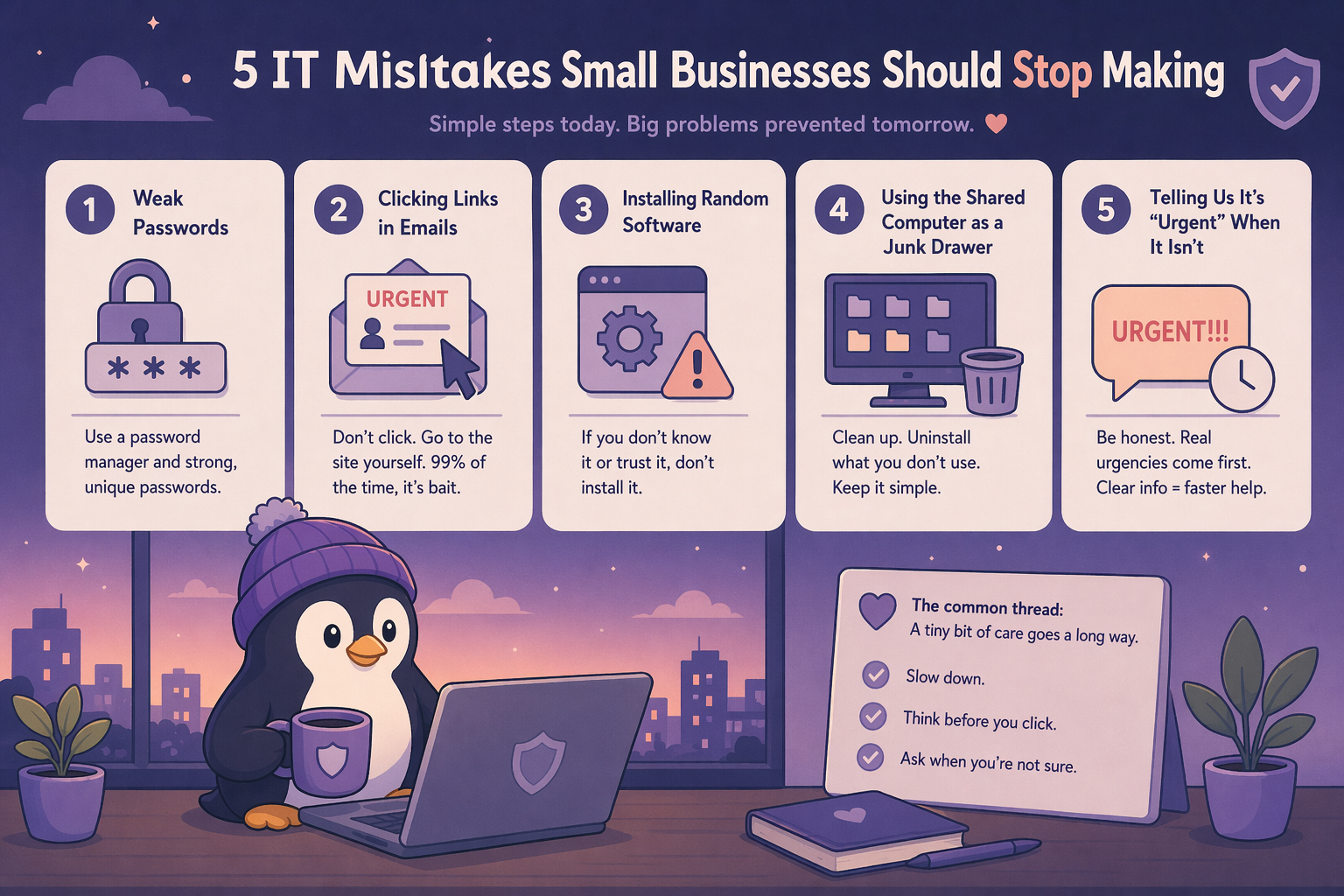
¡Look — I get it. You run a business. IT is not your thing. You’ve got clients to serve, invoices to send, staff to manage, and a hundred other things to think about before you have to worry about whether your laptop is acting up again.
But some of the things I see small businesses do make my eye twitch. And I say that with love.
So here it is. These are the most common (and fixable) mistakes I see. If any of these apply to you — and if you’ve got any IT support at all, whether it’s an internal person or an external provider — please. For the love of all that is good. Stop.
1. Using “password123” (Or Your Business Name, Or Your Dog’s Name…)
I wish I was joking. I have seen all of these. Used by real businesses, with real data.
Here’s the thing: password policies exist for a reason. Every time there’s a data breach — and there’s one basically every week somewhere in the world — millions of username and password combinations get leaked onto the internet. And attackers use these to automatically try those same credentials across other systems.
If your password is Plumbing2024 and your email address is john@plumbing.co.nz, I can guarantee that combination is in a list somewhere. It takes a bot about 0.3 seconds to try it.
What to do instead: Use a password manager. Bitwarden is free, works on every device, and generates strong passwords so you don’t have to think of them. You remember one master password, and it handles the rest.
Yes, it takes 20 minutes to set up. No, it’s not complicated. Yes, it will save you a world of pain.
2. Clicking Links in Emails from “Microsoft” Warning You About a Security Threat
Oh, this one kills me.
You get an email that says something like:
“Your Microsoft 365 account has been compromised. Click here to verify your identity immediately.”
The email looks legit. The branding is right. The logo is there. There’s even a link to “Microsoft” in the text.
It’s not from Microsoft. It’s from Steve in his mum’s basement trying to harvest your credentials.
What to actually do: If you get an email from Microsoft (or your bank, or anyone) asking you to click a link and log in, don’t click the link. Open your browser. Type in the URL yourself (office.com, your bank’s actual URL, whatever). Log in there and check for any actual notifications.
99% of the time, there’s nothing. The email was bait. You didn’t bite. Well done.
How to spot a phishing email:
- Creates urgency (“Act now!” “Your account will be closed!”)
- The sender address is slightly off (support@micros0ft-security.com vs support@microsoft.com)
- You hover over the link and the URL doesn’t match the company
- You weren’t expecting it
When in doubt, bin it. Or ask someone who knows. That’s literally what we’re here for.
3. Installing Random Software From the Internet
“Do you have a PDF?” “Just download any free PDF reader from Google.” Downloads some god-awful toolbar-laden garbage from a sketchy website
Yes, you need a PDF reader. But you get one from Adobe. Or use Edge, which is already installed and handles PDFs just fine. You don’t need to Google “free PDF reader” and click the first sponsored result.
Random software installs are one of the biggest sources of:
- Adware (pop-ups everywhere)
- Spyware (keyloggers, data theft)
- Ransomware (everything’s encrypted, pay up or lose it)
- Bloatware (slows your computer down)
The rule: if you don’t know exactly what it is and where it came from, don’t install it. Period.
If you need help figuring out whether something is safe, ask. That’s not a dumb question. Clicking “next” on an installer without reading it is the dumb thing.
4. Using the Shared Computer as a Junk Drawer
You know the setup. There’s one computer in the office. Everyone uses it. The desktop has 47 shortcuts, half for things you installed once in 2019 and never used again. The browser has 6 toolbars. There’s a folder called “New Folder (3)” sitting on the desktop with who-knows-what in it.
This isn’t just messy. It’s a genuine problem:
- Outdated software doesn’t get security updates
- Random old installs can conflict with things you need now
- Finding anything takes forever
- The computer runs like molasses because it’s doing background tasks for 11 programs nobody uses
What to do: Give everyone their own account on the computer (even basic Windows accounts). Clean up the desktop. Uninstall everything you don’t use. Keep the desktop to a few folders max.
If the computer is genuinely slow, it might just need a cleanup. And by “cleanup” I mean: someone goes through it properly, removes the junk, and makes sure what’s left is current and actually used.
Or buy separate devices. One shared junk-drawer computer for five people ends up costing more in lost productivity than just giving everyone their own cheap laptop.
5. Telling Us It’s “Urgent” When It Isn’t
I know — to you, if you can’t print your invoices right now, it IS urgent. You’ve got work to do and the printer isn’t playing ball.
But I need you to understand: when five people all say their issue is “urgent,” nothing is urgent. That’s just called a Tuesday.
Meanwhile, the person who quietly sends a calm message like “Hey, whenever you get a chance, I’m having trouble with X” — that person is my favourite human. I’ll help them first every single time, because they’re reasonable and I’m only human.
Here’s how IT prioritises (and this is how IT teams prioritise issues):
Actually urgent:
- Nobody can access email/Internet/your main business application
- You think you might have been hacked or have ransomware
- Something is actively losing you money right now
Important but not urgent:
- Printer is doing that thing again
- Computer is a bit slow
- You need help installing something
- Software is “acting weird”
Not urgent (but you’ll ask anyway):
- Can you make the text bigger?
- Can you help me with my home laptop?
- What’s the Wi-Fi password again?
Be honest about the urgency and you’ll get better, faster service. I promise.
Bonus Round: The Stuff You Probably Don’t Even Know You’re Doing
Since we’re here, a few extras:
Plugging in random USB sticks. Found a USB drive? Don’t just plug it in to see what’s on it. It could be loaded with malware. Ask first.
Sharing passwords via email or text. If you need to share login details, use a password manager’s sharing feature, or just tell the person verbally. Don’t write passwords in an email. Emails get forwarded, hacked, and sit in inboxes forever.
Never restarting your computer. Some of you have been running the same session for weeks. Just restart it. Seriously. Once a week. It installs updates, clears out the cobwebs, and fixes weird glitches.
The Common Thread
Every single point on this list comes down to one thing: a tiny bit of care goes a long way.
You don’t need to become an IT expert. You just need to slow down a little, think before you click, and ask when you’re not sure.
And if you’re not sure? That’s fine. That’s what we’re here for. I’d rather answer a “silly” question than recover your data after you click something you shouldn’t have.
Want a printable staff IT policy checklist you can stick on the office wall? I’ve put together a one-page PDF on Patreon covering password rules, email safety, and software install policies. Grab it here.