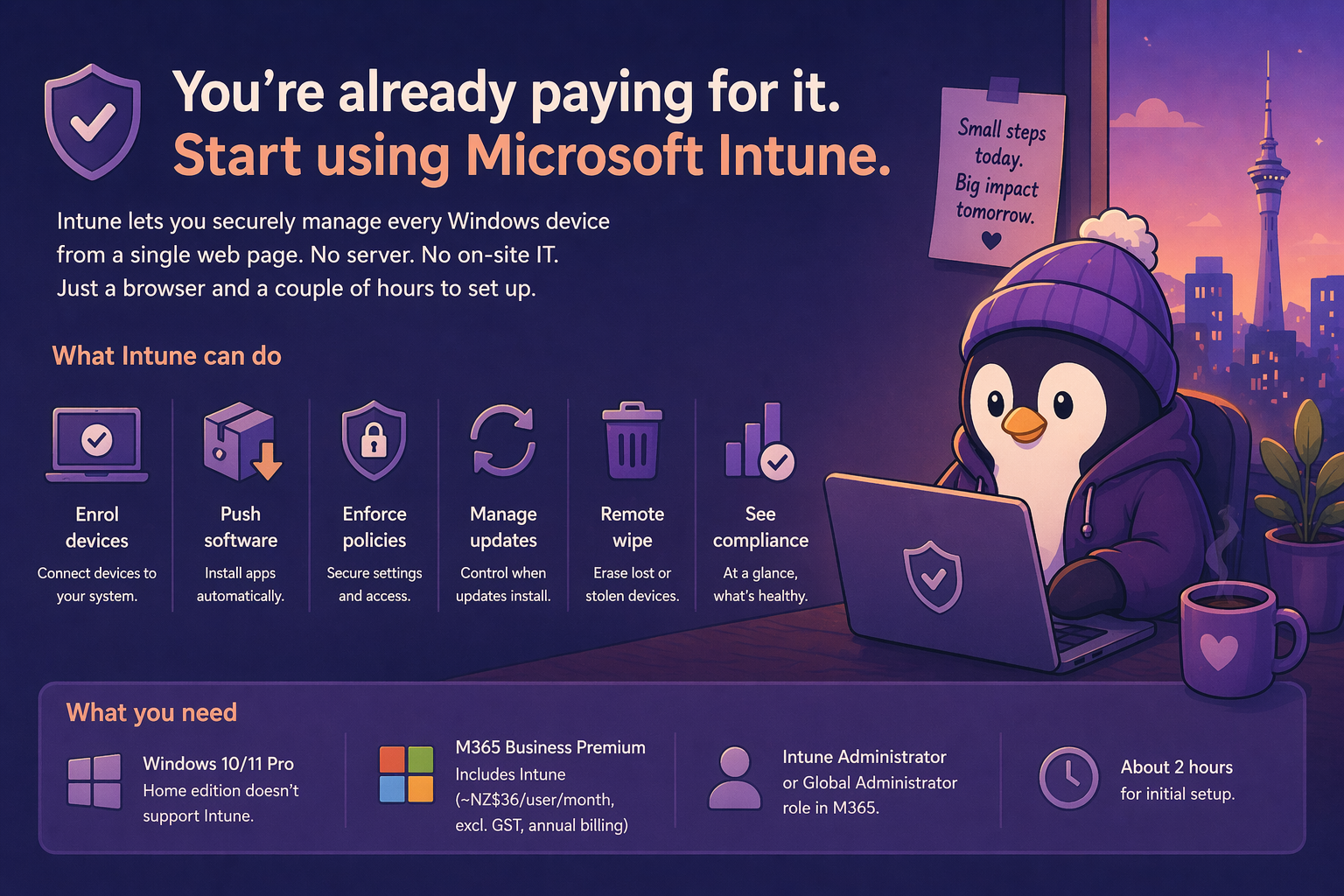
If you’re on M365 Business Premium, you’re paying for Microsoft Intune every single month. And if you’re not using it, you’re leaving one of the most valuable tools in the M365 suite on the table.
Intune lets you manage every Windows computer in your business from a single web page. No server required. No on-site IT person required. Just a browser and a couple of hours to set it up.
I know what you’re thinking: “That sounds complicated.” It’s not. It’s just unfamiliar. Let me walk you through it.
What Intune Actually Does
Think of Intune as a remote control for your computers. From the Intune admin centre, you can:
- Enrol devices — connect them to your management system
- Push software — install applications automatically
- Enforce policies — require encryption, set password rules, control settings
- Manage updates — control when Windows Updates install (we covered this in a previous post)
- Remote wipe — if a laptop gets stolen, erase it remotely
- See compliance — at a glance, which machines are up to date and which aren’t
For a small business without a dedicated IT person, this is transformative. Instead of walking around to each machine to check settings, you do it all from your desk.
What You Need
- M365 Business Premium (includes Intune — ~NZ$36/user/month, excl. GST, annual billing)
- Windows 10/11 Pro on each device (Home edition doesn’t support Intune enrolment)
- An Intune Administrator or Global Administrator role in M365
- About 2 hours for initial setup
Step 1: Enable Intune
If you’re on Business Premium, Intune is already included. You just need to start using it.
- Go to https://intune.microsoft.com
- If it’s your first time, it’ll take a few minutes to provision
- You’ll see the admin dashboard — this is your new best friend
Step 2: Set Up Automatic Enrolment
This is the magic bit. Once configured, any user who signs into a Windows device with their M365 account automatically enrols it in Intune. No manual setup per machine.
- In Intune, go to Devices > Enrolment (then the Windows tab)
- Click Automatic Enrolment
- Set the scope to All (or a specific group if you want to test first)
- Set the MDM user scope to All
That’s it. From now on, when someone joins a Windows PC to your Entra ID and signs in, it enrols automatically. Note: the device must be Entra ID joined — simply signing into an app with a work account registers the device but doesn’t fully enrol it for MDM.
Step 3: Create a Compliance Policy
A compliance policy defines what “healthy” looks like for your devices. If a device doesn’t meet the policy, it shows as non-compliant and you can restrict its access to company data.
- Go to Devices > Compliance > Policies > + Create policy
- Choose Windows 10 and later
- Configure the basics:
| Setting | Recommended Value |
|---|---|
| Require BitLocker | Yes |
| Require Secure Boot | Yes |
| Require code integrity | Yes |
| Minimum OS version | Your current version |
| Password complexity | Require digits and lowercase letters |
| Password minimum length | 8 |
| Require antivirus | Yes (Windows Defender) |
- Click Create
Now any device that doesn’t meet these requirements shows as non-compliant in your dashboard.
Step 4: Deploy Your First App
Let’s install something. 7-Zip is a good test — it’s free, small, and useful. It’s available in the Microsoft Store, so this is the easy path:
- Go to Apps > All apps > Add
- Select Microsoft Store app (new)
- Search for “7-Zip”, select it
- Assign to a group (start with a test group)
- The app will install automatically on enrolled devices
For apps that aren’t in the Store, you’ll need the Win32 wrapping method:
- Go to Apps > All apps > Add
- Select Windows app (Win32)
- Wrap the installer (.msi or .exe) into the .intunewin format using Microsoft’s Win32 Content Prep Tool, then upload it
- Set the install command and uninstall command
- Assign to a group
Yes, Win32 wrapping is the fiddliest part of Intune. Always check the Store first.
Step 5: Set Up a Configuration Profile
Configuration profiles let you control device settings. Here are the ones I’d set up first:
Wi-Fi profile: Push your office Wi-Fi settings so devices connect automatically.
- Go to Devices > Configuration profiles > Create profile
- Platform: Windows 10 and later
- Profile type: Templates > Wi-Fi
- Enter your SSID, security type, and password
- Assign to your device group
BitLocker profile: Ensure all drives are encrypted.
- Go to Endpoint security > Disk encryption > Create policy
- Platform: Windows 10 and later, Profile: BitLocker
- Enable BitLocker, set encryption method
- Assign to your device group
Note: The older path Templates > Endpoint protection still works, but Microsoft now steers toward Endpoint security > Disk encryption.
What This Looks Like Day-to-Day
Once set up, your workflow is:
- New employee starts — they get a Windows PC, sign in with their M365 account, and Intune automatically enrolls it, installs your apps, and applies your policies. Done.
- Someone loses a laptop — you go to Intune, find the device, and click Wipe. You’ll be prompted for a 6-digit Recovery PIN. The laptop is erased the next time it connects to the internet.
- A compliance issue pops up — you see it in the dashboard, and you know exactly which machine and what’s wrong.
- You need to deploy new software — add it in Intune, assign it, and it installs automatically.
No driving to the office after hours. No walking around to each machine. No “I’ll do it Monday.”
The Honest Limitations
Intune isn’t perfect. A few things to know:
- It needs internet connectivity. Devices check in with Intune periodically — they don’t need to be online 24/7, but they do need to connect now and then to receive policies and report status.
- Mac and iOS management is possible but the experience isn’t as polished as Windows.
- The reporting is basic. It tells you if something’s compliant, but it won’t give you deep diagnostics.
- There’s a learning curve. The first few hours are confusing. It gets easier.
- Windows Home edition doesn’t work. You need Pro. If you’ve got Home edition machines, that’s a problem.
The Bottom Line
If you’re paying for M365 Business Premium and not using Intune, you’re wasting money. It’s not enterprise-only software — it’s designed for exactly your situation: a small business that needs to manage devices without a dedicated IT team.
Set it up once, and it pays for itself in time saved every single week.
I’ve put together a complete Intune enrollment walkthrough on Patreon — with screenshots for every step, recommended compliance policies for small business, and a device enrollment checklist you can follow for each new machine. Get it here.