In a recent post we covered the difference between syncing and backing up — and why OneDrive or Google Drive alone won’t save you when things go sideways.
This time, let’s talk about what a proper backup strategy actually looks like. There’s a well-known framework for this, and it’s refreshingly simple.
It’s called the 3-2-1 Backup Rule.
What Is the 3-2-1 Rule?
The concept comes from Peter Krogh, a photographer who was thinking about how to protect his life’s work. It’s since become the gold standard for data protection across every kind of business.
The rule is:
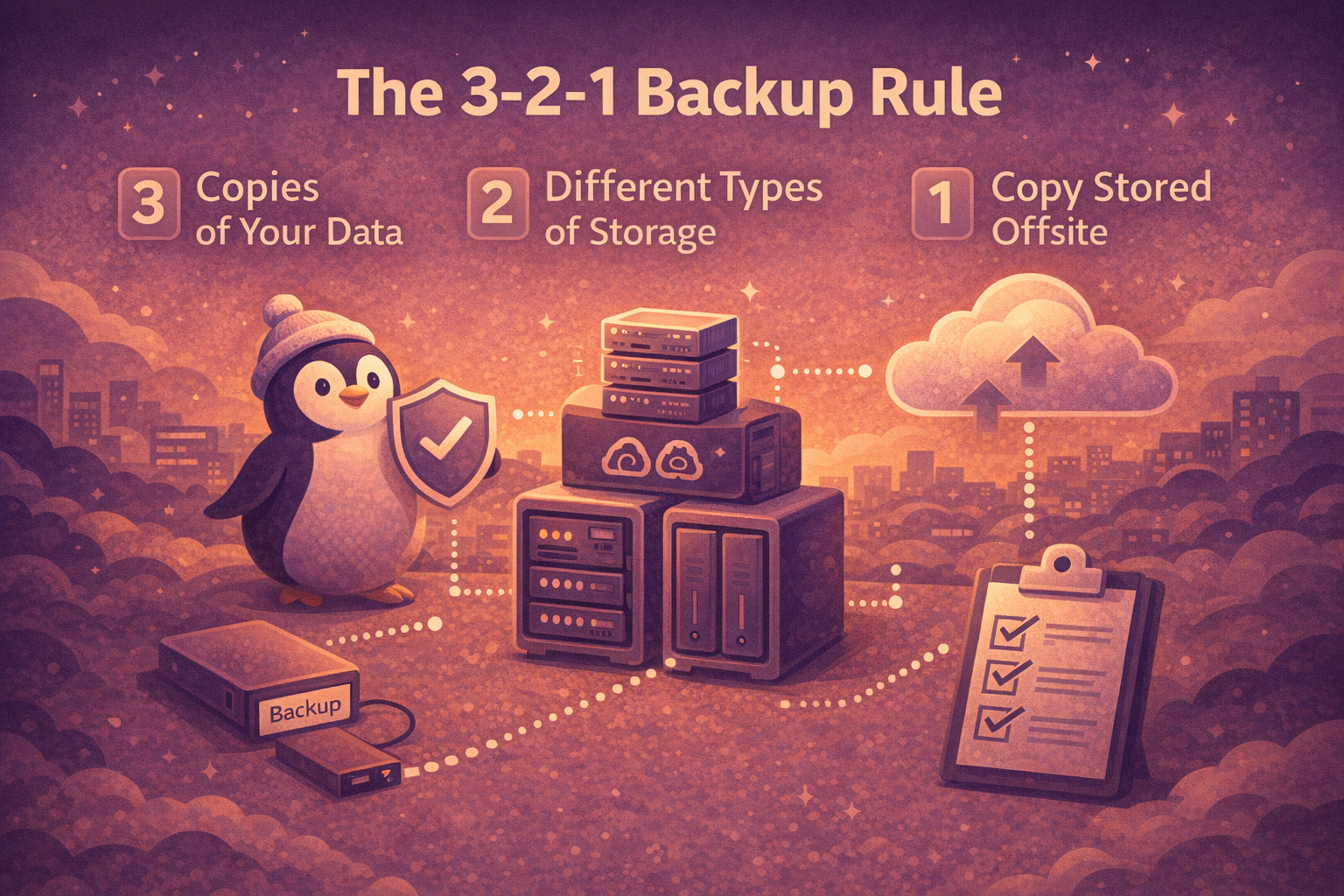
3 copies of your data 2 different types of storage 1 copy stored offsite
That’s it. Three lines. But each one matters, and most grassroots businesses aren’t following any of them.
Let’s break it down.
3 Copies of Your Data
This means the original data on your computer, plus two separate backups. Not one backup — two.
Why two? Because your single backup can fail. Hard drives die. USB sticks get lost. Cloud accounts get compromised. If you only have one backup and it’s corrupted or missing when you need it, you’re in the same position as someone with no backups at all.
The good news: copies don’t all need to be full system images. One could be an image backup of your entire machine, and the other could be a copy of your critical business files — accounting data, customer records, emails, whatever would hurt most to lose.
2 Different Types of Storage
Don’t put both backups on the same kind of device. If both backups are on external hard drives and one fails due to a manufacturing defect, the other might not be far behind — same batch, same usage, same environment.
Instead, use two different storage mediums:
- External hard drive or NAS (Network Attached Storage) at your office — for fast, local restores
- Cloud backup (Backblaze, Wasabi, Azure Blob, AWS S3) — for protection against physical disasters
The point is diversity. Different storage types fail in different ways. Cover more bases.
1 Copy Stored Offsite
This is the one most people skip. Your office has a fire, flood, theft, or power surge — and suddenly your computer and your backup drive are both gone.
An offsite copy means at least one backup lives somewhere physically separate from your business. For a small business, this doesn’t have to mean a data centre. It can mean:
- A cloud backup service (the most practical option for most)
- An external drive you rotate weekly to someone’s home
- A NAS at your house if the business is at your shop
The cloud option is honestly the easiest for a grassroots business. Once it’s set up, it runs automatically. No one has to remember to take a hard drive home on a Friday.
What This Looks Like in Practice
Let’s say you run a plumbing business with one office computer and a server.
Copy 1 (Original): Your live data on the office computer and server.
Copy 2 (Local backup): A NAS device in the office running daily backups of everything. If your server dies, you restore from the NAS. Done in minutes, not days.
Copy 3 (Offsite/Cloud): A cloud backup service running nightly, pushing encrypted backups offsite. If the office burns down, you buy a new computer, connect to the cloud, and start restoring. You’re operational again within a day or two instead of starting from scratch.
That’s the 3-2-1 rule in action. Not complicated, not expensive, but dramatically better than nothing.
What About the Cost?
This is where I expect some pushback: “Yeah, but I’m a tradie with 3 employees. I can’t afford a NAS and a cloud service.”
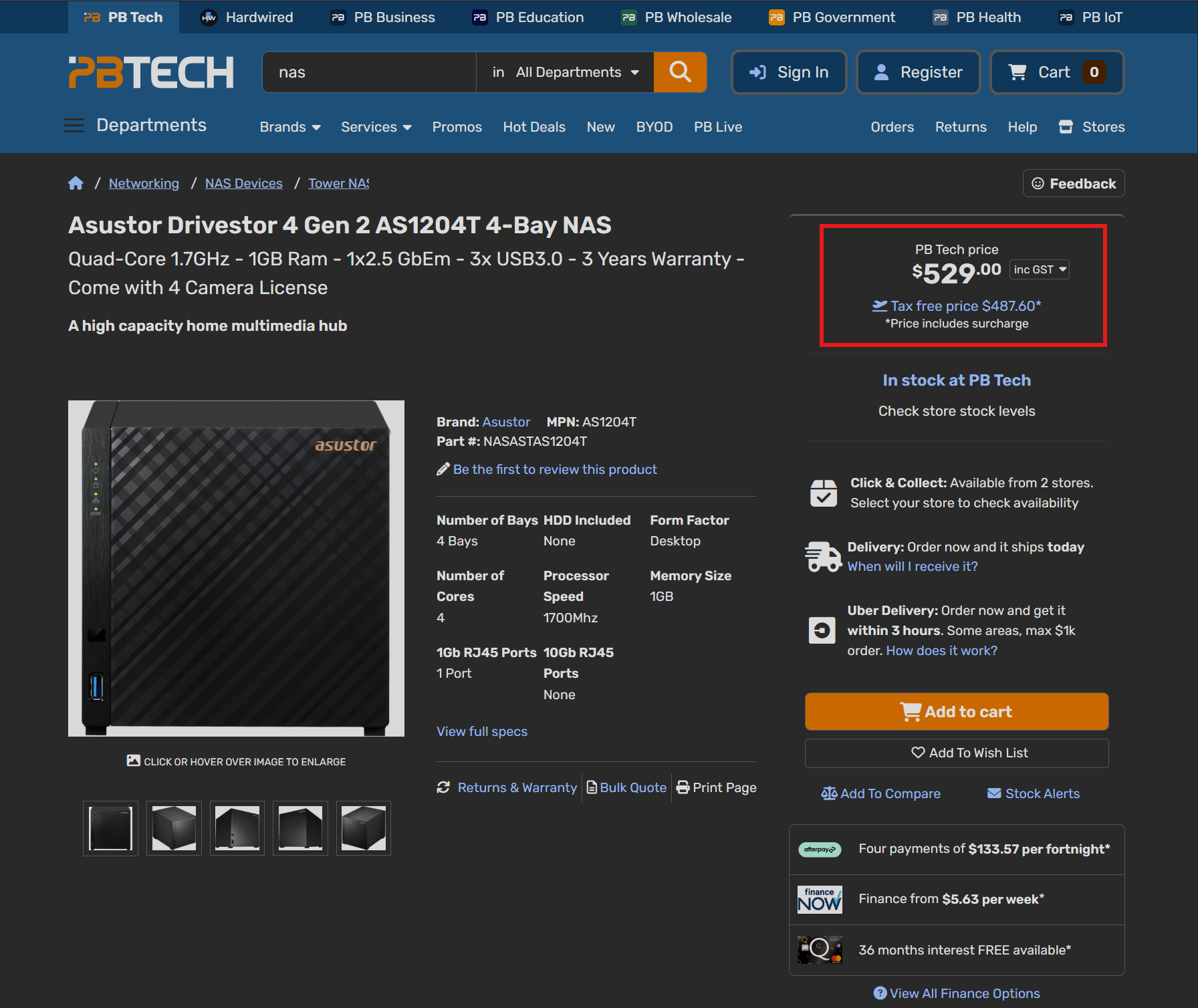
Here’s the thing — you can’t afford not to. A decent 2-bay NAS runs about $300-400 NZD. A 4TB external drive is around $100. Cloud backup for a small business runs about $50-100/month depending on how much data you have.
Compare that to the cost of losing all your business data. Customer records, invoices, job records, accounting files. The stuff you actually run your business on. What’s that worth?
And you don’t have to do it all at once. Start with an external drive and a cloud backup first. Add a NAS later. The key is to start.
The Bare Minimum
If budget is genuinely tight, here’s the absolute baseline:
- Copy 1: Your computer (original)
- Copy 2: External hard drive plugged in at the office, backing up weekly
- Copy 3: Cloud backup service running automatically
This costs you about $8-10/week for a basic cloud backup and possibly a one-time cost for an external drive. Less than most people spend on coffee.
If that’s still too much, I’d challenge you to think about what your business data is worth. Because the question isn’t really “Can I afford to back up?” It’s “Can I afford not to?”
Automate or Forget
The biggest enemy of backups isn’t cost — it’s forgetting. If backing up requires someone to plug in a drive, click a button, or remember to do something, it will eventually get skipped.
Automate everything you can. Set your backup software to run on a schedule. Cloud backups should be continuous or nightly. A local backup should run at least weekly, ideally daily.
Set it and forget it. Except for one thing: verify.
Test Your Backups. Seriously.
I mentioned this in the last post but it bears repeating: a backup you’ve never tested is just a guess.
Pick a file. Restore it from your backup. Confirm it works. Do this every month or so. It takes five minutes. It’s the difference between “I think we’re backed up” and “I know we’re backed up.”
The 3-2-1 Rule Is a Starting Point
This rule doesn’t cover everything — you also need to think about how often you back up (daily? hourly?), how long you keep old backups (30 days? 90 days?), and what you’re actually backing up (just files? system images? email?).
But the 3-2-1 rule is the foundation. Nail this first. Build on it later.
If you follow nothing else, do this:
- Buy an external hard drive
- Set up a cloud backup service
- Automate both to run on a schedule
- Test a restore once a month
That’s it. You’re ahead of 90% of small businesses already.
Want a step-by-step walkthrough of setting this up? I’ve put together a companion guide on Patreon that walks you through choosing a cloud provider, setting up automated backups, and creating a restore checklist. Check it out on Patreon.