You know the scene. A customer’s trying to tap their card and the terminal’s spinning. Your staff member’s trying to look up an inventory item and the page won’t load. Someone in the back office is on a video call that keeps freezing.
It’s the Wi-Fi. It’s always the Wi-Fi.
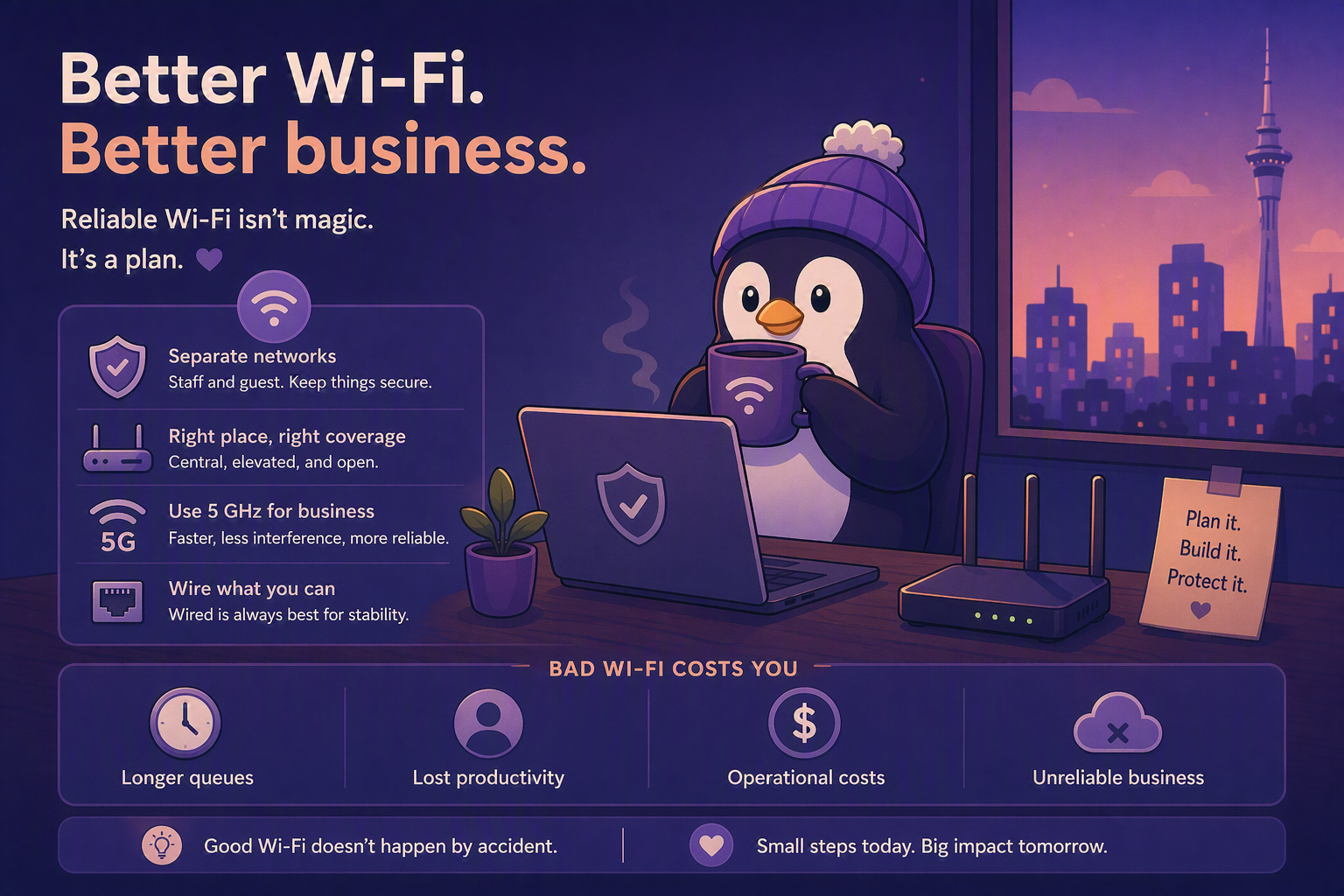
Bad Wi-Fi isn’t just annoying — it costs you money. Slow EFTPOS terminals mean longer queues. Dropped connections mean staff waste time retrying. And if you’re running any kind of cloud-based system (which most businesses are now), unreliable Wi-Fi means unreliable business.
The good news: you don’t need to spend thousands to fix it. You just need to stop treating Wi-Fi like it’s magic.
Why Small Business Wi-Fi Is Usually Bad
Most small business Wi-Fi setups follow the same pattern:
- ISP provides a modem/router combo
- It gets plugged in wherever the phone/fibre line enters the building
- Everyone connects to it
- It works fine for 3 people and falls apart at 10
The ISP-provided router is designed to be “good enough for a house.” A shop, office, or warehouse is not a house. The walls are different, the area is bigger, the number of devices is higher, and the expectations are different.
The Basics: What You Actually Need
1. Separate your networks
At minimum, you need two Wi-Fi networks:
- Staff network — for your computers, POS systems, printers
- Guest network — for customers and visitors
Why? Because every device on your network is a potential problem. A customer’s phone with malware, a visitor’s laptop doing updates in the background — these shouldn’t be on the same network as your POS terminal.
Most decent routers support multiple SSIDs (network names). Set this up. It takes 10 minutes.
2. Put the router somewhere sensible
The ISP router usually ends up in the corner of the building where the phone/fibre line comes in. That’s often the worst possible location for Wi-Fi coverage.
Wi-Fi signals spread out in a sphere from the router. If the router’s in the corner, half the signal is going outside your building. Ideally, the router (or access point) should be centrally located, elevated, and not hidden in a metal cabinet.
If you can’t move the router, that’s what access points are for (more on that below).
3. Use 5 GHz for business devices
Most modern routers are dual-band — they broadcast on 2.4 GHz and 5 GHz.
- 2.4 GHz: longer range, slower speeds, more interference (everything from microwaves to Bluetooth uses this band)
- 5 GHz: shorter range, faster speeds, less interference
For your business devices — POS terminals, staff computers, printers — use 5 GHz. It’s faster and more reliable. Reserve 2.4 GHz for devices that are further away or don’t need the speed.
4. Get the right equipment
If you’ve got a small office (under 150 square metres, under 15 devices), a good consumer router might actually be fine. Look for:
- Wi-Fi 6 (802.11ax) — current standard, better with multiple devices
- Multiple SSIDs (for staff/guest separation)
- Gigabit Ethernet ports (for wired devices)
Brands like TP-Link (Deco series), ASUS (ZenWiFi), or Netgear (Orbi) have solid options in the $200-$400 range.
If you’ve got a larger space, multiple floors, or more than 20 devices, you need a proper access point setup. This is where it gets more serious:
- Ubiquiti UniFi — the go-to for small business. A UniFi access point ($150-$250 each) managed by free controller software. One AP covers about 100-150 square metres. Add more as needed.
- TP-Link Omada — similar concept to Ubiquiti, slightly cheaper, also good.
- MikroTik — powerful but steeper learning curve. Best if you’ve got some networking knowledge.
5. Wire what you can
Wi-Fi is convenient, but wired is always better for reliability. If a device doesn’t move — a desktop PC, a POS terminal, a printer — run an Ethernet cable to it. It’s faster, more reliable, and it takes load off the Wi-Fi for devices that actually need wireless.
Yes, running cables is a pain. But for fixed devices, it’s a one-time job that pays off forever.
How to Do a Basic Site Survey
Before spending money on equipment, understand what you’re working with:
- Walk the space with your phone. Use a free Wi-Fi analyzer app (like WiFi Analyzer on Android or Airport Utility on iOS).
- Check signal strength in every area where you need Wi-Fi. You want at least -65 dBm (the number is negative — closer to 0 is stronger). Below -75 dBm and you’ll have problems.
- Note dead zones — areas where the signal drops off completely.
- Check for interference — how many other Wi-Fi networks are visible? If you’re in a busy area (strip of shops, office building), the 2.4 GHz band is probably congested. That’s another reason to use 5 GHz.
This takes 15 minutes and tells you exactly what you’re dealing with.
Common Mistakes
- Too many devices on one router. ISP routers are not built for 30+ devices. If you’ve got a busy shop, they’ll struggle.
- Wi-Fi extenders. These are usually a bad idea. They cut your speed in half and create a separate network your devices have to switch between. A proper access point on a wired backhaul is always better.
- Ignoring the guest network. Customers on your business network is a security risk and a bandwidth hog.
- Never changing the default password. If your Wi-Fi still has the password from the sticker on the router, fix that today.
- Forgetting about uploads. Most internet plans are asymmetric — fast download, slow upload. If you’re doing video calls, cloud backups, or VoIP, upload speed matters. Check your plan.
The Bottom Line
Reliable Wi-Fi isn’t about spending the most money. It’s about understanding what you need, putting the right equipment in the right place, and separating your networks properly.
Start with the basics: separate staff and guest networks, use 5 GHz for business devices, wire what you can, and if the ISP router isn’t cutting it, invest in a proper access point. For most small businesses, $300-$500 in equipment solves 90% of Wi-Fi problems.
I’ve put together a site survey guide and router configuration walkthrough on Patreon — including a site survey template, recommended settings for common router brands, and a step-by-step guide for setting up separate staff and guest networks. Get it here.