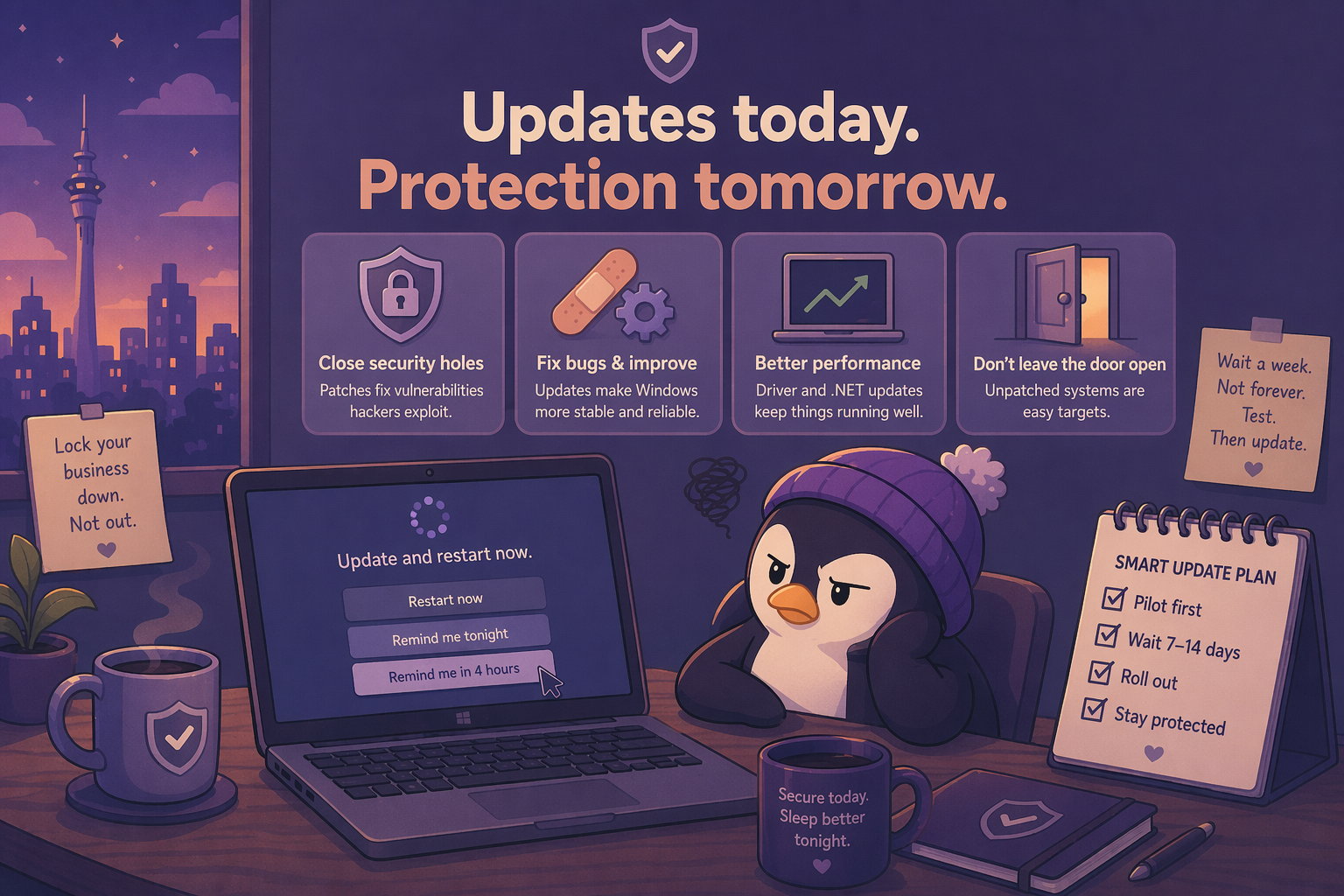
You’re in the middle of something. A deadline, a customer on the phone, a report that was due yesterday. And there it is:
“Update and restart now.”
So you click “Remind me tonight.” Tonight comes. You click “Remind me in 4 hours.” You keep clicking it until it forces the restart at the worst possible time, and now you’re annoyed at Microsoft.
I get it. I really do. But here’s the thing — that prompt is trying to save your business.
What Updates Actually Do
There’s a misconception that Windows Updates are just Microsoft adding features you don’t want and changing things that work fine. Sometimes that’s true — the occasional feature update does change the look and feel, and it’s annoying.
But the critical updates? The ones that interrupt your work? Those are usually security patches (delivered as part of monthly cumulative updates).
Here’s what that means in practice:
Microsoft’s security team (and independent researchers) find vulnerabilities in Windows. These are flaws that a criminal could use to get into your computer. Some vulnerabilities require no interaction at all — in some cases, just being on the same network with an unpatched machine is enough. Others rely on phishing or user action.
Microsoft releases a patch to fix the vulnerability. That patch gets delivered via Windows Update.
If you install the patch, you’re protected. If you don’t, the door stays open. And criminals know exactly which doors are still open — the patches are public. When Microsoft releases a fix, attackers can reverse-engineer the patch to figure out exactly what to exploit on machines that haven’t updated yet.
Not updating is like locking your front door but leaving the key in it.
The WannaCry Problem
In 2017, a vulnerability called EternalBlue was used to spread the WannaCry ransomware. It infected over 230,000 computers across 150 countries in a few days. Hospitals, businesses, government agencies — all hit.
Microsoft had released a patch for the vulnerability nearly two months before the attack.
Most of the businesses that got hit weren’t running ancient unsupported Windows. Mostly Windows 7 and Server 2008 R2 systems — the same versions many businesses were still running. They just hadn’t installed the update.
WannaCry didn’t care that you were busy. It didn’t care that the update prompt was annoying. It just encrypted everything and demanded $300 in Bitcoin.
The majority of successful ransomware attacks exploit known vulnerabilities with available patches. The gangs aren’t using fancy zero-days — they’re exploiting the updates people didn’t install.
“But Updates Break Things!”
This is the counter-argument, and it’s not wrong. Sometimes updates do break things. A driver stops working. An app compatibility issue pops up. Something that worked yesterday doesn’t work today.
This was more of a problem in the Windows 7/8 era. It still happens occasionally, but Microsoft has gotten significantly better at testing updates before broad release. The “update broke my computer” scenario is far less common than it used to be.
Here’s how to manage the risk without leaving yourself exposed:
Don’t install updates on day one. But don’t wait three months either.
Let the early adopters find the problems. Wait a week or so after “Patch Tuesday” (the second Tuesday of each month — that’s when Microsoft drops their big security updates). Then install.
You can configure this in Windows through Windows Update for Business or Intune (if you’re on M365 Business Premium). Set a deferral period — give feature updates a longer deferral (30-60 days), but keep security updates shorter (7-14 days).
How to Set Up a Basic Update Policy
If you’re running Windows 10/11 Pro (most business machines do), you can configure this without any extra tools:
- Open Settings > Windows Update > Advanced options
- Enable Receive updates for other Microsoft products (keeps Office updated too)
- If available on your version of Windows, under Choose when updates are installed, set:
- Feature updates: defer by 30 days
- Quality updates: defer by 7 days
That’s the “set and forget” level. You’ll get security updates within a week of release (early adopters have found any problems by then) and feature updates within a month (plenty of time for news about any issues).
If you’ve got M365 Business Premium and Intune, you can do this centrally for all machines — more on that below.
If You’ve Got Intune (M365 Business Premium)
This is where it gets easier. When we covered M365 licensing, I mentioned that Business Premium includes Intune. One of the best things about Intune is centrally managing Windows updates across all your devices.
You create update rings — groups of settings that control when and how updates install. You can set up:
- A pilot ring: 5-10 machines get updates first. If something breaks, you catch it before it hits everyone.
- Everyone else: Gets updates 7-14 days after the pilot group.
The pilot ring should include non-critical machines and tech-comfortable staff who’ll actually report problems. Don’t put your most important server in the pilot group.
I’ve put together a complete walkthrough on Patreon for setting up Intune update rings — including recommended settings for small business, screenshots, and what to do if an update causes problems.
Other Things Updates Cover
It’s not just security. Updates also include:
- Bug fixes: That weird crash in Excel that happens every Tuesday? Might get fixed in a cumulative update.
- Driver updates: New hardware support and better performance on existing hardware (though these can occasionally cause issues, so some businesses manage them separately).
- .NET Framework updates: A lot of business software depends on this. Missing or mismatched .NET versions are a common cause of app issues.
The Bottom Line
I know updates are annoying. I know they always seem to fire at the worst time. But the alternative — running unpatched Windows in a business environment — is genuinely dangerous.
Configure a deferral so you’re not on day one. Test on a couple of machines first if you’re in a managed environment. But actually install them. Every month. Without fail.
The ransomware gangs are counting on you putting it off. Don’t make it easy for them.
For M365 Business Premium users, I’ve put together a step-by-step Intune update ring guide on Patreon — with recommended settings, pilot group setup, and rollback procedures if an update causes issues. Check it out here.